A genealogy belongs to a whole family, and nobody finishes one alone. Sharing the work is simple: set a family code and post the invitation in your family's WeChat group. Relatives who open the link and enter the code can see everyone, add descendants and correct mistakes. They need no account, and by default nothing they send reaches the genealogy until you approve it.
1Set the family code
Open the genealogy, press Genealogy admin and scroll down to Access code. Every genealogy has a code from the moment it is made, and the two boxes start like this:
- Allow access to the recent generations by code: ticked. Whoever enters the code sees the recent generations, which the public never does.
- Allow additions and corrections by code: not ticked on a new genealogy. Tick it, and whoever enters the code can propose additions and corrections without an account; they take effect once you approve them. Nobody can delete anyone with the code.
The code is hidden until you press Show (the button then says Hide). Now you can read it, or change it to something the family will remember: 4 to 16 letters or digits, not case-sensitive. Tick what you want and press Save. If you did this at the last step of Start a genealogy, there is nothing more to do here.

You can also set a second, View-only code, for people who only need to look: with it they see the recent generations and can download the PDF and the lineage image, but they cannot send any addition or correction, even when Allow additions and corrections by code is ticked above. Under it, press Generate a view-only code, or press its Show button and type your own, then Save; when it is no longer needed, press Remove the view-only code. It cannot be the same as the code above, and the invitation gives the code above.
2Copy the invitation into the family chat
Under the code, the Invitation is already written, with the genealogy's name, its link and the code. Press Copy the invitation and paste it into your family's group chat. The link opens straight onto the page for entering the code, so nobody has to go looking for it.
The wording follows what you saved: with the second box ticked it asks relatives to help continue the genealogy and add newborns; with only the first, it invites them to read.

3Relatives enter the code
A relative opens the link, types the code and presses Enter. They arrive at the genealogy's front page and can see everyone, the recent generations included. Capital letters do not matter.
On the same phone or computer the code keeps working for 14 days from when it was entered. On a shared computer, press Code accepted on the genealogy's front page when finished, and then End access.

4Relatives fill it in
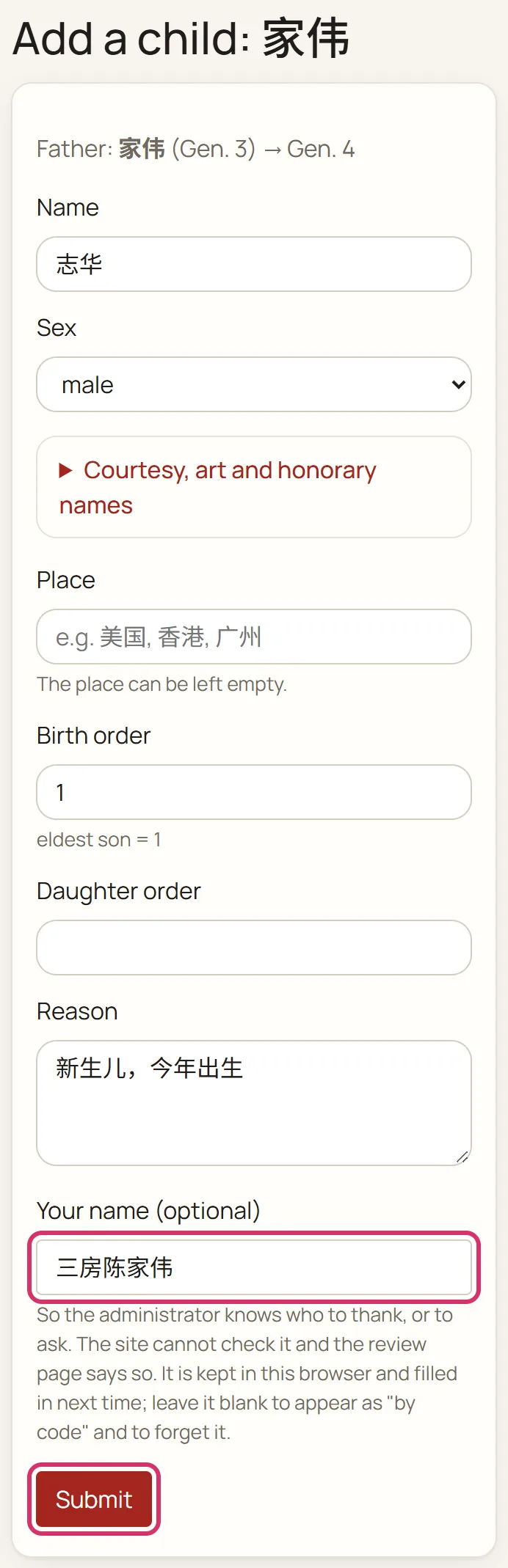
With the second box ticked and the code entered, a relative finds the person they want in the lineage view or with Find a name, and that person's page now has these buttons:
- + Add a child, under Children: a newborn, or a child the genealogy missed. The generation counts itself.
- + Add spouse, Propose a correction and Write a biography: a wife or husband, a corrected name, courtesy name or birth order, a few lines about an ancestor.

Every form has a box for Your name (optional). Ask relatives to say who they are, for example 三房陈家伟 ("Chen Jiawei of the third branch"), so that you know who sent what; on the same phone it is filled in for them next time. Under Reason they say what it is based on, such as "a newborn, born this year". The code can add and correct, but it can never delete anyone.
5You review
What relatives send appears on the Genealogy admin page under Waiting: submitted by code; the section is there whenever something is waiting. Each entry says what is proposed (Add person, say), the details and the reason, and how it came in: marked by code, followed, if they gave a name, by signed "…" - unverified, because the site has no way to check it.
If it is right, press Approve and it goes into the genealogy at once; if not, Reject. With several waiting, tick them and press Approve selected or Reject selected.

6Approved by mistake? Undo it
Every change that took effect is in the Change history: press ☰ Change history near the bottom of the Genealogy admin page. The newest come first, each saying what changed, who changed it (a change sent by code says only by code) and when.
To take one back, press Undo on it and confirm: it is put back as it was, and the undo is recorded as well. Undoing an added person removes that person. Adding or removing a spouse and changing the birth order cannot be undone this way; the entry says why.

Good to know
- Try it first: open the demo, 台山示范陈氏族谱, enter the family code 12345, open anybody's page and send in a child with + Add a child. As on any genealogy, it waits for the demo's administrator to approve it.
- If the code has gone further than you meant: press Generate a new one under Access code and post the new invitation, and from then on newcomers need the new code. Anyone who already entered the old one can still read for up to 14 days from when they entered it. To stop changes by code at once, untick Allow additions and corrections by code and save.
- Only so many submissions by code can wait at once. When the limit is reached, relatives have to wait for you to work through them before sending more, so review them regularly.
- Under Edit policy on the Genealogy admin page, a kind of request can be switched from Needs review to apply automatically. That kind then takes effect without review, including when it is sent by code, so most families are best left at Needs review.
- A relative who has an account here goes by that account once signed in: the code lets them read, but not send changes. Ask them to press Apply to switch to this genealogy on its front page (an account belongs to one genealogy at a time). Once you approve it under Requests to join on the Genealogy admin page, they are an approved family member and send changes from their account.